Everything it does, by the minute of the show
A live show has four moments: before you go live, while you are live, when things break, and when it ends. Here is what Ship Show does in each one. Everything in the first four sections works today on a Mac, tested on a practice show with pretend buyers.
Before you go live
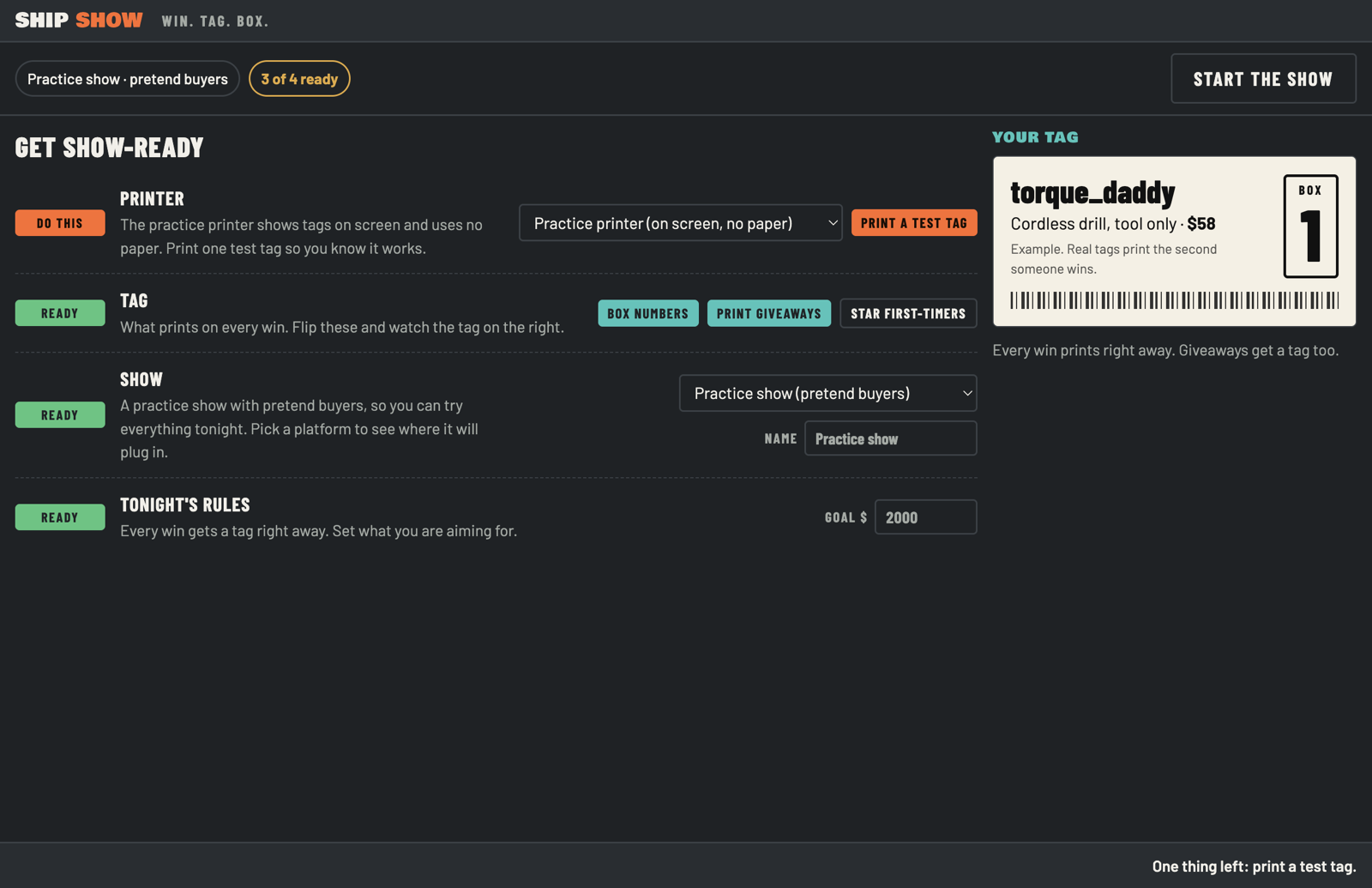
Get show-ready takes a minute, not a checklist taped to your monitor.
- Get show-ready sheet. Pick the platform, pick the printer, check the connection, and press GO.
- Whatnot connection. Paste your own Whatnot token once. It is locked in the Mac's Keychain.
- Practice show. Run a whole pretend show with pretend buyers, so your first real tag is not your first tag.
- Break-it buttons. The practice show lets you unplug the printer and drop the connection on purpose, so you can watch the fixes work.
- Light and dark mode. Dark for the garage at midnight, light for the daytime sellers.
While you are live
The whole point: a buyer wins, a tag prints, a box number is yours.
Tag on every win
A thermal tag prints with the buyer, the item, the price and a big box number.
One box per buyer
Every buyer gets one box number for the whole show. Win once or win forty times, same box.
The Live screen
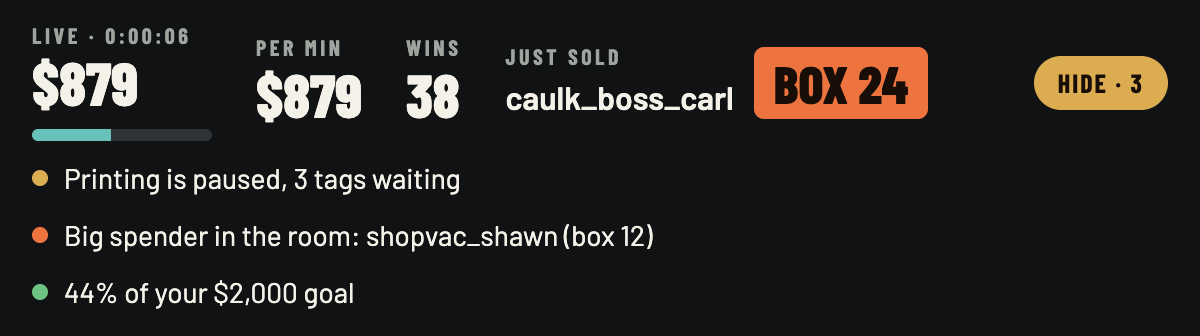
A wall of numbered boxes, the last tag, and numbers for sales, wins, buyers and wins per minute.
Sales goal bar
Set a goal for the night and watch the bar fill. Motivation, now with a progress bar.
Floating show window
A small always-on-top window keeps the last box number in the corner of your eye while you sell.
Quick tag
Sold something off-platform or in a side deal? Tag it by hand in a few seconds.
Pause printing
Need the printer quiet for a minute? Pause it. Wins keep being counted and the tags wait.
Giveaways on or off
Decide whether giveaway wins get a tag and a box. Your show, your rule.
Reprint
Smudged tag? Reprint one tag, or a whole box's worth.
When things break
Ship happens. These are the parts built for it. There is a whole page of them in the field guide to things going wrong.
Printer unplugged
Ship Show notices, says so in big letters, and holds every tag in a waiting line. When the printer is back, they print in order.
Lost the show
If the connection drops, Ship Show tells you, keeps trying, and catches up on the wins it missed once it is back.
Cannot read the page
If a platform page changes and Ship Show cannot read it, it says so plainly and lets you tag by hand until it can.
Same sale?
Tagged one by hand and the app caught the same win later? It holds the second tag and asks: same sale, or a different one?
When the show ends
The packing is already sorted. This part is the victory lap.
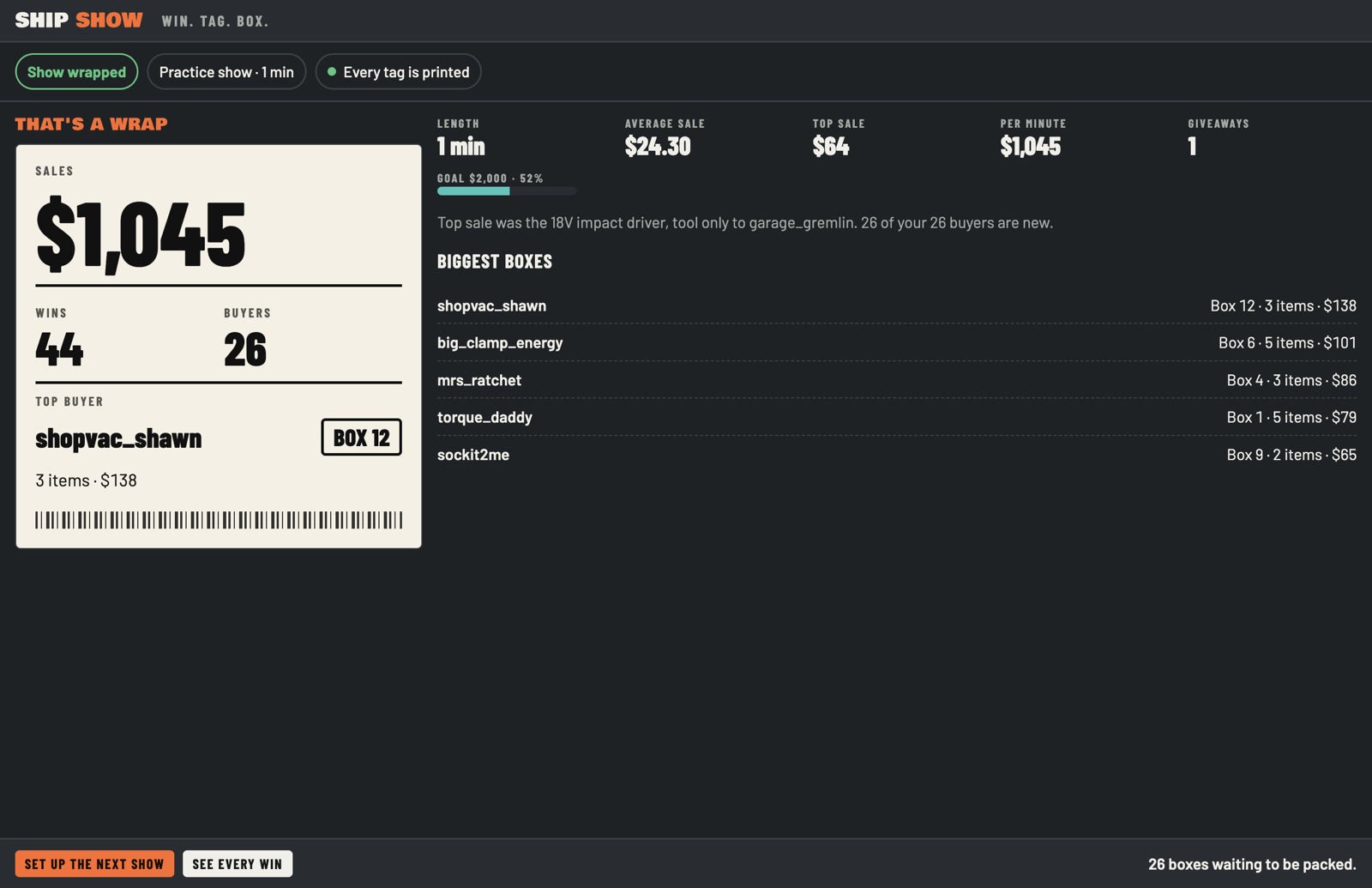
- Show wrapped. One summary of the night: sales, wins, buyers and boxes.
- Past shows. Every show you have run is in a list, ready to look back at.
- Reprint a tag or a whole box if something got lost between the table and the shelf.
- Your data stays put. Show data lives in a file on your own computer.
Coming next
None of this works yet. It is on the bench, in roughly this order of nagging from live sellers. No dates, because we would rather be late and honest than on time and lying.
Pack check
After the show, tick every item off box by box. Every tag carries a scan code: scan it and Ship Show ticks the item, or tells you it is in the wrong box.
Just built
Pull-it-back alerts
When a sale is cancelled or goes unpaid, the box turns red and tells you which one to pull it from.
Just built
Box full, next box
Tell Ship Show a box is full and it moves that buyer to the next one.
Just built
Phone view
Check the wall of boxes from your phone, across the room.
Coming
Show rules
A tag for each item in a lot, words that never print or are the only ones that print, one-tap show types, and a Rules button that changes them mid-show. "Paid orders only" is there too, but it does not work on Whatnot yet.
Just built
Tag designer
Your logo on the tag, switches for what prints, four label sizes and your own quick tags. Built, not yet printed on real paper.
Just built
Profit recap and buyer history
What you really made, and who keeps coming back.
Coming
Physical buttons
A foot pedal or clicker for the actions you do with your hands full.
Coming
Inventory
Know what is left on the shelf before you say "one more".
Coming
Shipping labels and packing slips
Print the postage and the paper, right after the boxes.
Coming
Chat desk and giveaway runner
Handle the chat and run giveaways without leaving the app.
Coming
Insights
Patterns across your shows: what sells, when, and how fast.
Coming
Also in the workshop: more platforms (see the platforms page) and a Windows version.
Want it before it is finished?
Join the early-access list. One email when your platform is ready.